Your first request
From an empty workspace to a routed request in six stops: connect a provider, enable models, create a key, send from the Playground, read the result, find it in Logs.
On this page
The path
Each stop is one page of the app, reached from the sidebar. You need one thing from outside Cloud Score: an API key from a model provider.
Any provider works for a first request. Cloud Score classifies requests with a small model and powers its semantic cache with embeddings from a connected OpenAI provider; without one, classification falls back to built-in rules and the semantic cache stays off.
Connect a provider
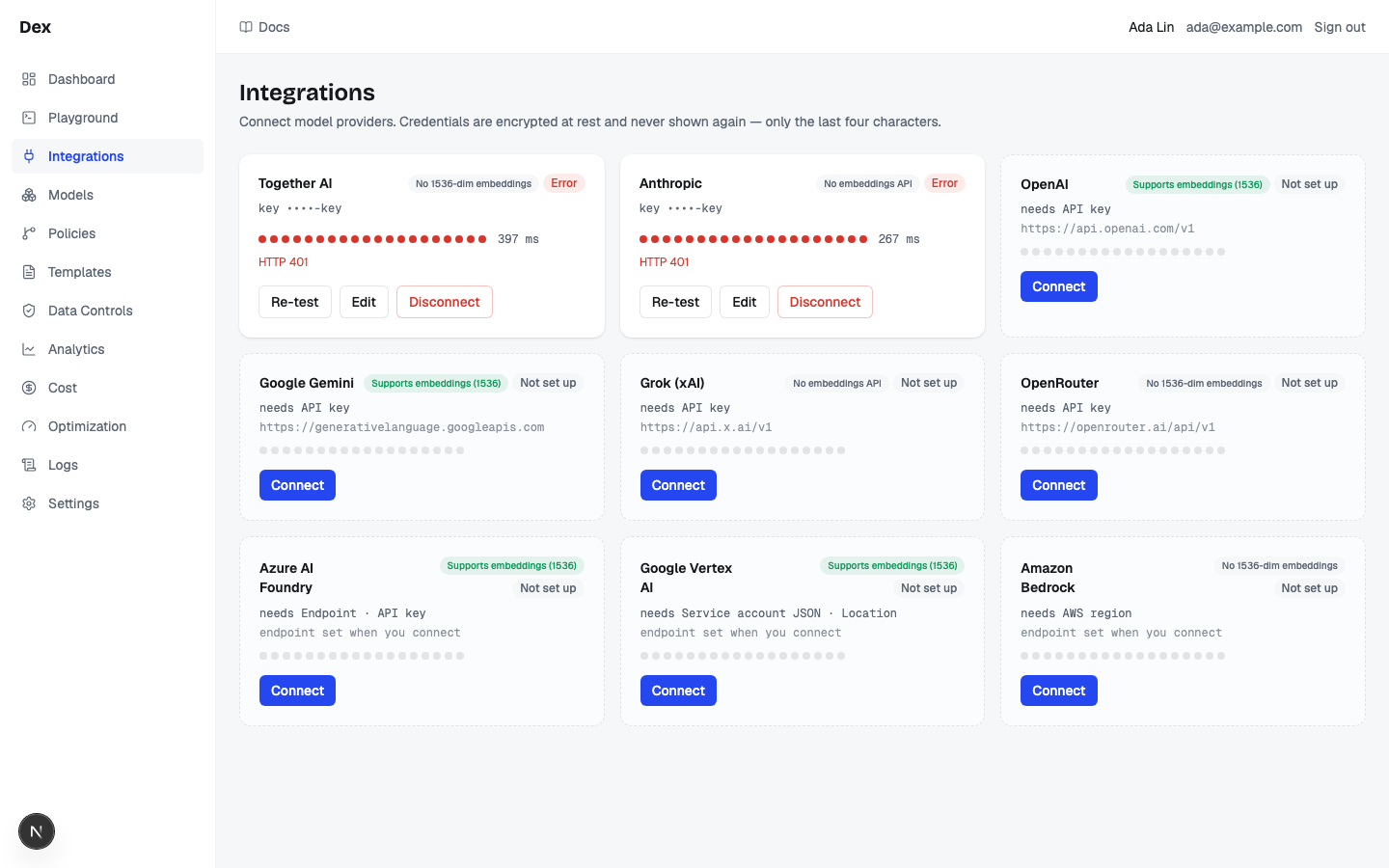
Click
ProvidersunderGatewayin the sidebar.Every provider has a bay. An unconnected one is badged
Not set upand says what it needs, for exampleneeds API key.On the
OpenAIbay, clickConnect.The
Connect OpenAIdialog opens.Paste your key into
API key *.Leave
Base URLathttps://api.openai.com/v1unless you route through a proxy.Click
Test.Wait for
Credentials look good.If it saysFailed: …, fix the key and test again. Nothing is saved yet.Click
Save.The card appears with the badge
Disconnected: the credentials are stored (encrypted, shown askey ••••plus the last four characters) but no check has run yet.Click
Re-teston the card.The badge flips to
Connectedand the first health dot appears. Within a minute Cloud Score adds a dot with a measured latency, and keeps checking from then on.
Disconnect has no confirmation.
Disconnect on a card deletes the provider, every model discovered from it, and its health history the moment you click.
Enable models
Routing only ever chooses a model that is enabled on this page. A fresh provider has none.
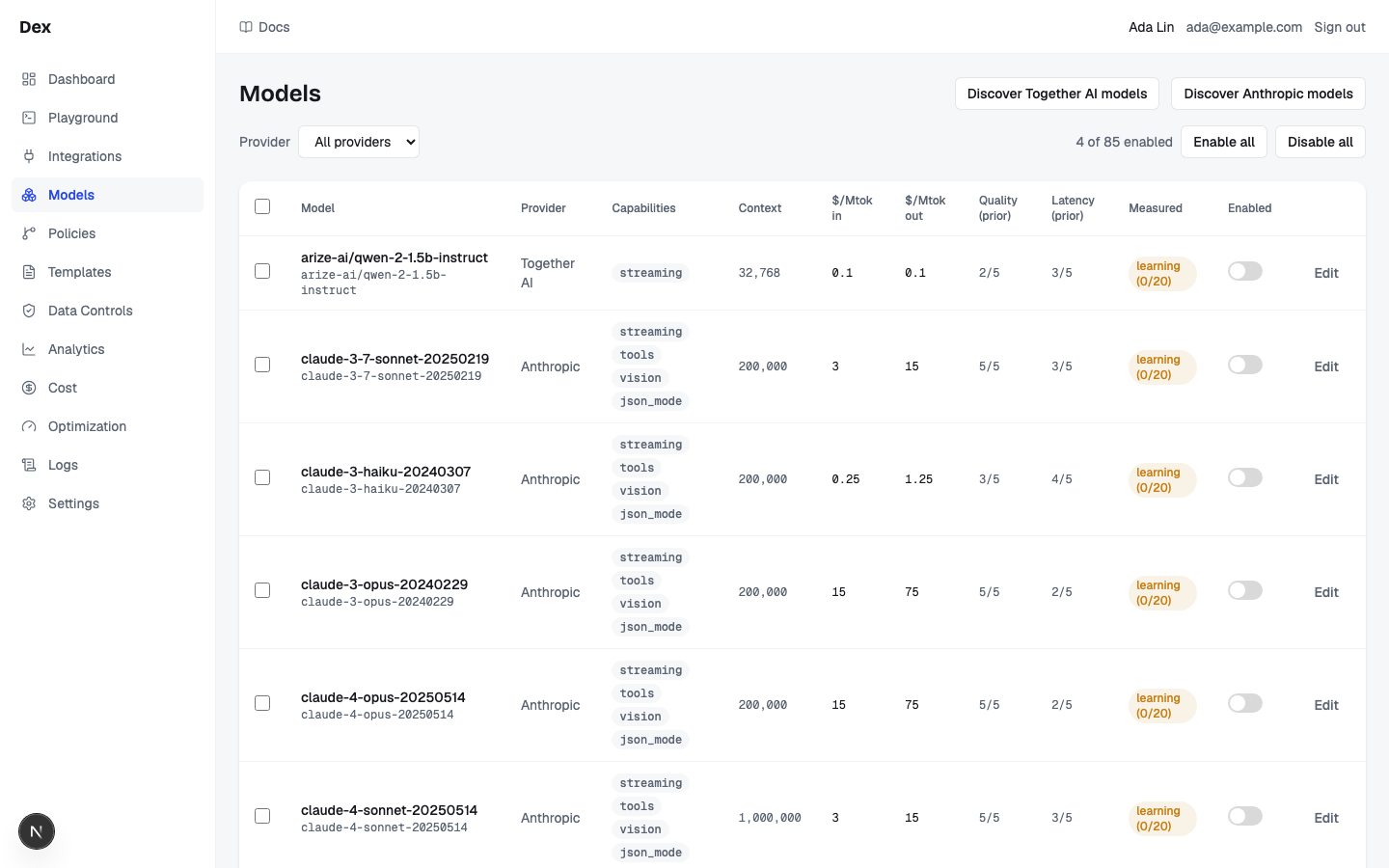
Click
ModelsunderGatewayin the sidebar.Click
Discover OpenAI models.The button reads
Discovering…, then a note such asAdded 57 from LiteLLM (disabled — enable to route) · updated 57. Every discovered model arrives disabled, with its prices, context window, and capabilities filled in.Set
ProvidertoOpenAI.The status line reads
0 of 57 enabled.Tick one or two rows and click
Enable selected.The status line changes to
2 selectedwhile ticking and the note readsEnabled 2 modelsafterwards. A row's own switch does the same for one model.
Azure AI Foundry has no discover button: its deployments are registered by your operator through the API.
Create an API key
Every request to the gateway, including from the Playground, carries a platform API key. The key decides the workspace, the security profile, and the budget a request runs under.
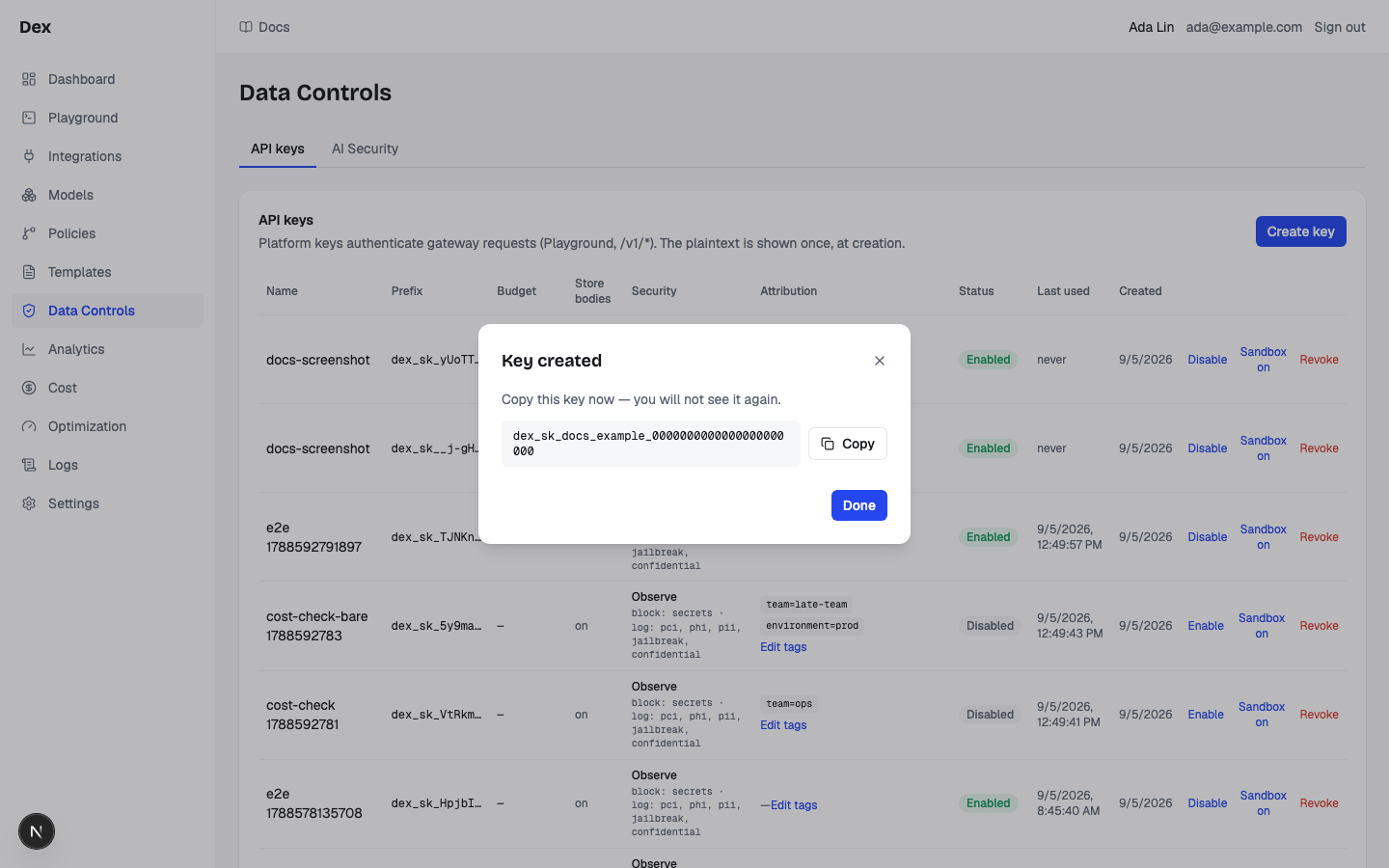
Click
API keysunderAdminin the sidebar.The key table opens. With no keys it reads
No API keys yet — create one to call the gateway.Click
Create key.Give it a
Name, for examplefirst-key.Leave
Store request/response bodieschecked so Logs can show you the prompt and the answer. LeaveSandbox key — may hand-pick policies per request (playground)unchecked andSecurity profileonObserve (default).Click
Create.The dialog becomes
Key createdand shows the full key, which starts withdex_sk_.Click
Copy, store the key somewhere safe, then clickDone.The full key is never shown again. The list shows only its prefix from now on.
Send a request
Click
Playgroundin the sidebar.Paste the key into
Platform API key.Switch on
Save for sessionto keep it for this browser tab. It is cleared when you sign out or open the sign-in page.Type a prompt in
Message.For example:
Explain in two sentences what a routing gateway does.Leave
Routingonauto.The caption under
autoreadsworkspace rules decide: with no policies yet, Cloud Score uses its default balance of cost, latency, and quality.Stream the answer, underAdvanced options, is on by default.Click
Optimize prompt, then choose a prompt.With
Prompt OptimizationON, Cloud Score prepares a bounded Balanced rewrite and records its API expense before generating your answer. Review both versions, the diff and estimated input savings. ChooseRun originalorRun optimizedto start answer routing. Structural checks do not guarantee preserved meaning. With optimization OFF,Run originalstarts the request directly.
Read the result
The answer streams into the Result pane, alongside the Prompt Optimization receipt. Click Details: on Routing, stations appear from left to right as each stage finishes. Each station shows a one-line summary and how long the stage took.
| Station | Its summary line tells you |
|---|---|
Guard in | What AI Security did to the prompt: off when the key has no profile, otherwise the action and the categories it matched. |
Classify | The task type and where the classification came from, for example generation · heuristic or summarization · llm. |
Match | How many enabled models can do this task, for example 2 models. |
Estimate | The cheapest candidate's estimated cost, for example from $0.000125. |
Policy | How many policies were evaluated, or blocked. |
Resolve | The cache verdict. A first request reads miss or the reason it was not eligible. |
Select | The winning model. |
Attempt / Execute | The model called, then the measured cost, for example $0.000118. A failed attempt drops below the rail and the next Select is the failover. |
Guard out | What AI Security did to the answer. |
Validate | ok, or retry when the answer was empty or not the JSON you asked for. |
Record | The final status: completed, blocked, or failed. |
Under the stations, the decision summary names the model Cloud Score routed to with its score. Usage shows tokens, cost, and latency, and Decision holds the Optimization decision card, which lists every candidate with the cost difference each would have made. In Usage, click Copy ID to keep the request id, which starts with req_.
Same prompt, two strategies
- What you do
Send the prompt with
costselected (captioncheapest within 8% of the best), then clickintelligence(captionthe best model, cheapest among ties) andSendagain.- What Cloud Score does
Scores the same candidates twice with different cost, latency, and quality weights.
- What you see
A different model in the result header, and in
Details›DecisionaCandidatestable whoseΔ vs selectedcolumn shows what each alternative would have cost.
Find it in Logs
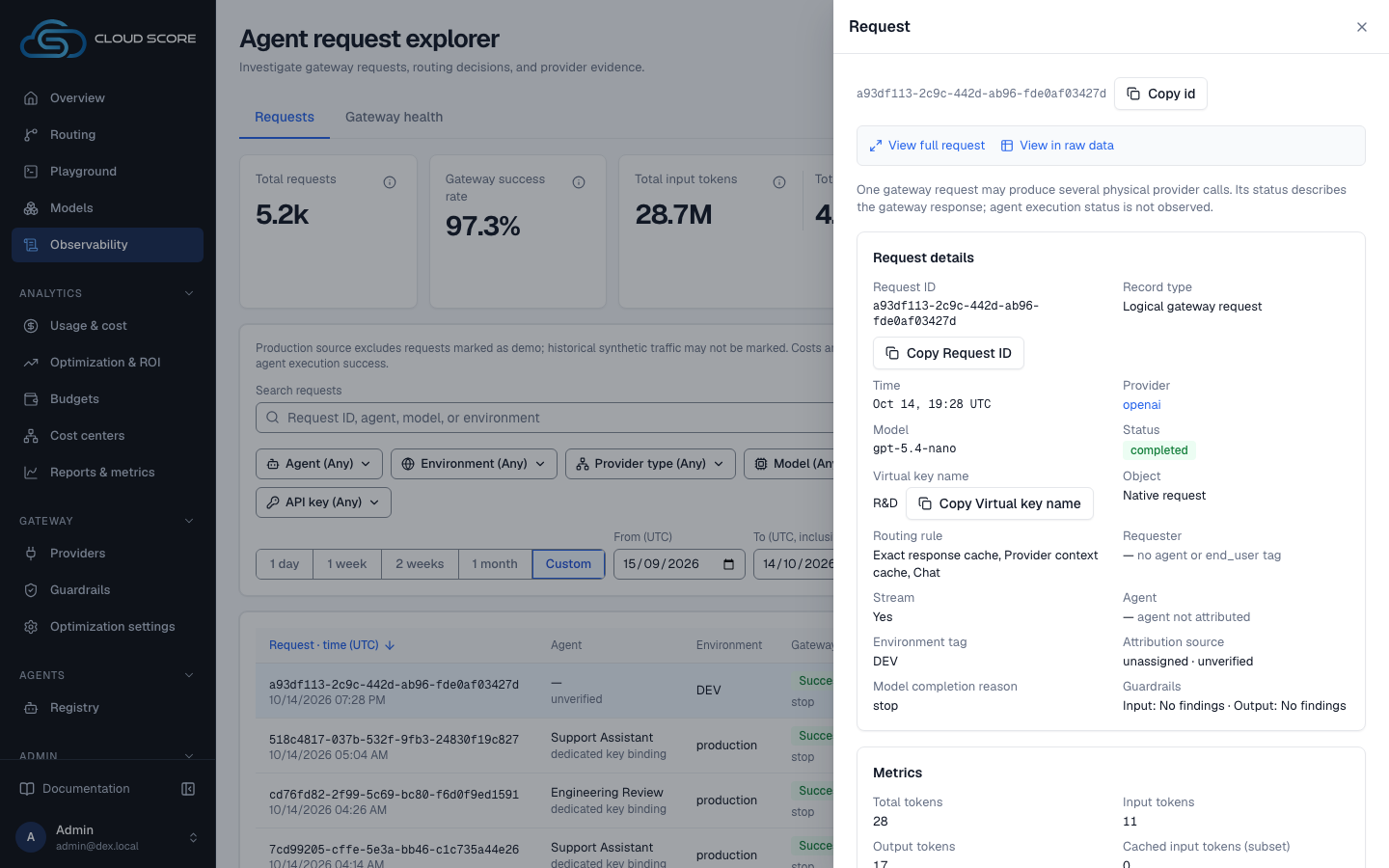
Click
Tracesin the sidebar.Your request is the top row: time, the prompt preview, the model, and the status
completed.Click the row.
The
Request detaildrawer shows the same route board, theOptimization decisioncard, and theCache,Classification,Request, andResponsesections. Close it withClose details.Look at
Overviewtoo.Total requestsandRequest activityon theDefaulttab include your request in the selected period. If Overview was already open, useRefreshto update its snapshot. OnGateway insights,EvidenceonRequests & spendopens the request evidence to inspect the recorded outcome.
What to do next
Point your application at Cloud Score from Admin › Developer, which generates a snippet for your language with the key and endpoint filled in. Then shape routing with Policies, cap spend under Budgets, and protect prompts and answers with Gateway › Guardrails.
Related
- PlaygroundCompare original and optimized prompts, choose which version to route, then inspect the answer and recorded execution evidence.
- IntegrationsConnect model providers with encrypted credentials, test them before and after saving, watch each connection's health, and see which providers can feed the semantic cache.
- ModelsThe registry of every model Cloud Score may route to: discover a provider's catalogue, enable the models allowed to compete, and override prices and tiers.
- ObservabilityThe per-request audit trail and the gateway's health: filter the request list, open a request for its route, attempts, cost and savings receipt, and read latency, outcomes and retries on Gateway health.
- Create your accountCreate a Cloud Score organization as its Admin, join as a Member, and understand sessions and workspace isolation.
- Finding your way aroundThe grouped sidebar, the header, which pages have tabs, and the conventions every number and badge in Cloud Score follows.