Optimization settings
Set the reference model, the workspace-default response cache, and each mechanism's mode and confidence floor, confirm promotions and check a decision before traffic feels it, and read the routing signals.
On this page
Prompt Optimization: optimize, review, then run
Prompt Optimization has one ON/OFF control, defaults ON, and accepts any prompt length. In Playground, Optimize prompt prepares a complete optimized prompt before answer routing, at the level you pick — Standard, Balanced or Thorough. Live counts use a real backend tokenizer. Review the original, optimized version and diff, then choose Run original or Run optimized. Our checks cannot guarantee that meaning is preserved, which is why you review the result. Editing the request invalidates its comparison. Workspace defaults are under Optimization › Settings.
Playground explicitly requests a bounded optimization and shows its recorded cost. A rejected, unavailable or unhelpful result falls back to your original without hiding its expense. Requests sent ON without a prepared proposal are optimized by structural rules only. Comparison details show the outcome, the rules applied and the measured work time. Infrastructure still consumes resources; unallocated compute keeps fully loaded savings unknown. Historical optimization expenses remain recorded and are not reset to zero.
The execution receipt distinguishes the selected prompt from the prompt actually sent for the answer, including no provider send when a cache supplies it. Optimization can have a recorded cost even when the original is selected or no answer is generated. Unknown infrastructure cost keeps fully loaded net unknown. Fewer tokens do not establish a latency or quality improvement. Analytics, ROI and Reports reuse Prompt Optimization evidence with production/demo filters and daily, weekly and monthly views.
See Playground for comparison and recovery, and Analytics for measurement coverage. Historical compression receipts do not establish choices or costs that were never recorded.
What you see
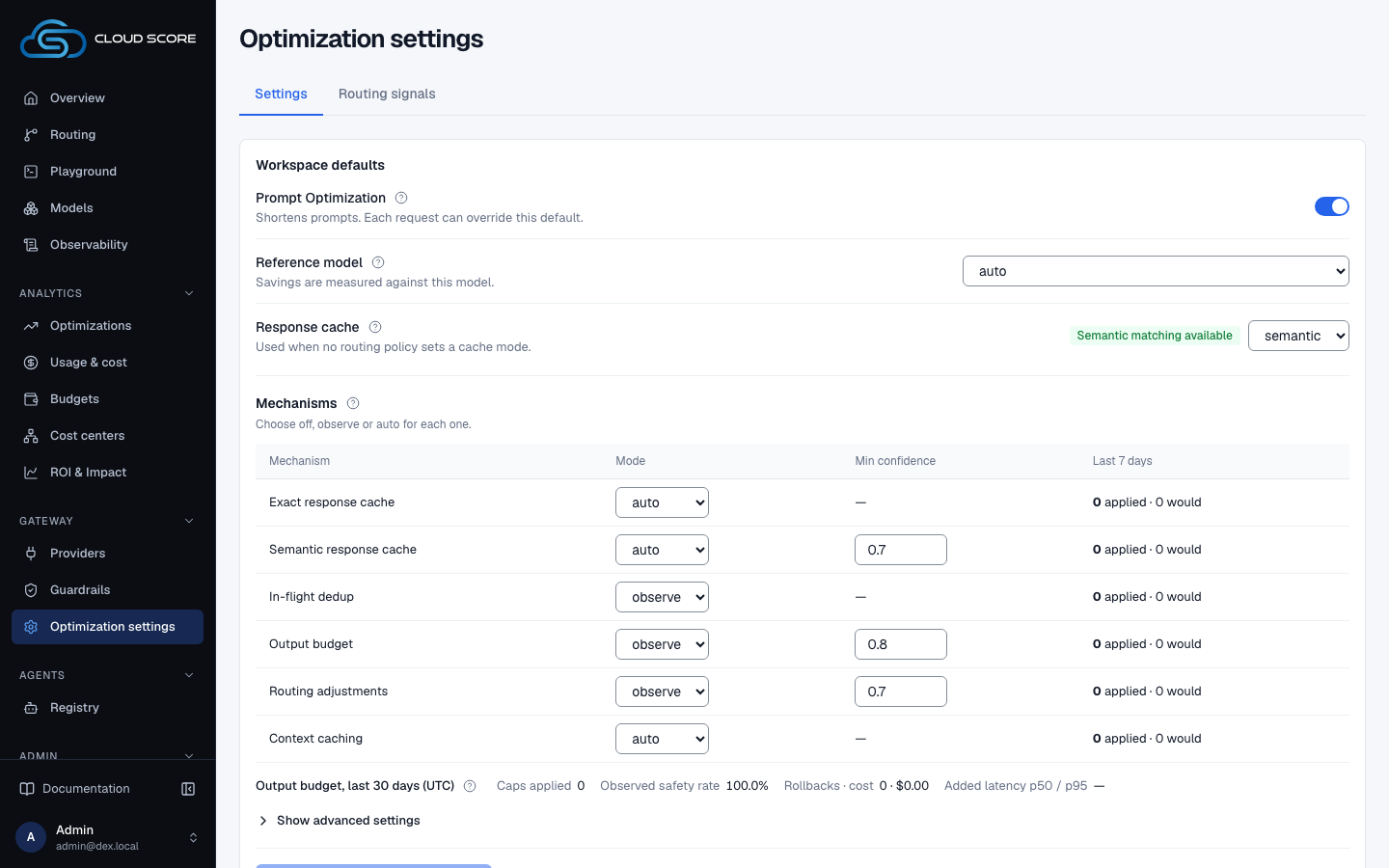
Optimization settings is under Gateway in the sidebar, with two tabs: Settings and Routing signals. The Settings tab is where the engine is configured: one card with Workspace defaults and Mechanisms, then the Response cache section and a collapsed Check a decision. Nothing in the settings card changes until you click Save optimization settings; until then every edit is a draft held in your browser. The tab shows Loading… until the saved settings arrive. Leaving it with unsaved edits asks Discard changes? first. Field explanations sit behind the help icon beside each label.
| Region | What it shows |
|---|---|
Prompt Optimization | The first row under Workspace defaults, with the hint Shortens prompts. Each request can override this default. One ON/OFF switch, default ON, with no minimum prompt length. Playground explicitly requests a Balanced rewrite and requires review before running a prompt. Requests without a prepared proposal retain deterministic rules without rewrite inference. Infrastructure cost remains separate. |
Reference model | A select whose first option is auto, then every enabled model as {model_key} — {provider_type}, for example gpt-4o — openai. The hint reads Savings are measured against this model. Its help explains that auto means the cheapest model of the top quality tier among the request's candidates, and that the client's requested model always wins when it matches. |
Response cache | A select with off, exact, semantic: what a request gets when no routing policy sets a cache mode (hint Used when no routing policy sets a cache mode.). Beside the select, the green badge Semantic matching available (hover it for the provider and model, for example openai · text-embedding-3-small, and the reason) or the warning badge Semantic matching unavailable (hover it for the reason). |
| Consequence banner | Only while the draft has In-flight dedup or Output budget at auto: Auto dedup and output budgets change what clients receive. Coalesced followers stream nothing until the leader settles; a capped call that truncates bills one rollback attempt. |
| Mechanism table | Under Mechanisms (Choose off, observe or auto for each one.), columns Mechanism | Mode | Min confidence | Last 7 days. One row each, in this order: Exact response cache, Semantic response cache, In-flight dedup, Output budget, Routing adjustments, Context caching. A row may carry the badge Observe only or Not wired next to its name; hover a badge for the backend line that proves it. The help beside Mechanisms covers cache modes and the badges. |
Output budget, last 30 days (UTC) | One line under the table: Caps applied, Observed safety rate, Rollbacks · cost and Added latency p50 / p95, which shows from 20 samples. |
Show advanced settings | A collapsed section that reveals the advanced grid; it reads Hide advanced settings while open. |
| Advanced grid (when open) | Number fields Output budget · floor tokens, Output budget · headroom, Dedup · max wait (ms), Context cache · min prefix tokens, Semantic cache · lookup timeout (ms), Response cache · max entries per workspace (0 = unlimited, else ≥ 1000), Response cache · max bytes per workspace (0 = unlimited), Legacy · affinity TTL fallback (s), Legacy · shadow sample %, Legacy · shadow similarity threshold; the checkbox Legacy Anthropic prompt-cache hint (pre-engine baseline). Legacy compression fields are retained by the API for compatibility and do not control Prompt Optimization. |
| Save row | At the foot of the card: Save optimization settings (reads Saving… while pending); beside it, the server's message or Save failed after a failed save, or Optimization settings saved. after a successful one. |
| Response cache section | Below the settings card: what the cache holds, its index and embedder badges, the top entries, a collapsed Diagnostics and the Purge row. See Response cache. |
Check a decision | Collapsed at the foot of the tab, below the response cache. Open it for a textarea pre-filled with an OpenAI-style request body, the button Check decision, and, after a run, a plan grid: Reference then one cell per mechanism. |
What you can do
| Action | What happens | What you see | Confirmation |
|---|---|---|---|
Reference model | Edits the draft reference used for the savings ledger. | Draft only until saved. Afterwards Saved (net) and the Savings waterfall on Optimizations compare against this model. | no confirmation |
Response cache | Edits the draft default for requests with no policy cache mode. | Choosing semantic with no embedder shows Semantic needs an embedder; without one, requests fall back to exact matching (…). | asks first on save when it goes from off to exact or semantic |
Mode select (off / observe / auto) | Edits that mechanism's draft mode. | The consequence banner appears when In-flight dedup or Output budget is set to auto. A Not wiredrow's select is disabled. | asks first on save for any promotion to auto |
Min confidence | Edits the floor a decision's confidence must reach before auto applies. | A number field with bounds 0.5 to 1 in steps of 0.05; present only on Semantic response cache, Output budget, Routing adjustments. Other rows show —. | no confirmation |
Show advanced settings | Toggles the advanced grid. | The summary flips to Hide advanced settings. | — |
| Advanced number fields and checkboxes | Edit nested draft values. | Blank or out-of-range numeric fields show an inline error and block Save optimization settings. | no confirmation |
Save optimization settings | Saves the whole draft, or opens the confirm dialog when a mechanism is being promoted to auto or the cache default is being turned on. | Saving…, then the table shows the saved values. On error, the server's message or Save failed. | asks first only for promotions and cache turn-on; downgrades and other edits save immediately |
Save and apply | Runs the save from inside the dialog. | The button reads Working…; the dialog closes. | — |
Cancel | Closes the dialog and keeps your draft. | Nothing saved; the edited values stay on screen. | — |
Check decision | Sends the textarea body to the decision node only: heuristic classification, no policy, no provider call, nothing stored. | Checking…, then the plan grid. Errors: Body is not valid JSON, the server's message or Decision check failed, and no plan when the server returns none. | no confirmation |
Step-by-step
Promote a mechanism safely: observe first, watch the counts, then switch to auto.
Open
Optimization settingsunderGatewayin the sidebar; theSettingstab opens first.Leave the mechanism at
observe, let traffic run, then read itsLast 7 dayscell.In
observethe full decision runs and is recorded but nothing is applied. The cell reads{applied} applied · {would_apply} would, for example0 applied · 96 would; hover it forsaved $ · would save $. A steady "would" count is the signal to promote.Optionally set
Min confidence.Between 0.5 and 1. In
autothe mechanism applies only when the decision's confidence reaches this floor; below it the request behaves as observe.Change its
Modetoauto.For
In-flight deduporOutput budgetthe bannerAuto dedup and output budgets change what clients receive.appears at once.Click
Save optimization settings.The dialog
Start applying these mechanisms automatically?opens and names the promoted mechanisms: "Every request in this workspace will start having In-flight dedup applied automatically. Clients may receive cached or coalesced answers, a smaller output budget, or a different model."Click
Save and apply, orCancelto keep editing.On success the table shows the saved mode, and the mechanism's
Modebadge inBy mechanismon Optimizations readsauto.
Turn on the workspace-default response cache.
Under
Workspace defaults, setResponse cachetoexactorsemantic.Pick
semanticonly when the badge readsSemantic matching available; hover it for the embedder, for exampleopenai · text-embedding-3-small. If it readsSemantic matching unavailable, semantic requests fall back to exact matching and the warning says so.Click
Save optimization settings.The dialog
Turn the response cache on for this workspace?explains that requests with no cache policy will be served from the chosen response cache, and that any caller can opt a single request out withconstraints.cache = "no-store"orX-Dex-Cache-Control: no-store.Click
Save and apply.Repeated prompts now populate the
Response cachesection below the settings. A policy's cache mode still wins over this default.
Set a reference model for the savings ledger.
Under
Reference model, pick a model such asgpt-4o — openai.Only enabled models are listed. Leave
autoto compare against the strongest candidate.Click
Save optimization settings.No dialog unless a promotion or a cache turn-on is pending in the same draft. Then read
Saved (net)on Optimizations; see Optimizations for the savings waterfall and the by-mechanism table.
Check what the engine would decide for one request.
Scroll to
Check a decisionat the foot of the tab, open it, and edit the request body.The textarea starts with
{"model":"auto","messages":[{"role":"system","content":"You are terse."},{"role":"user","content":"Summarize: the quick brown fox."}]}.Click
Check decisionand read the plan grid.The button reads
Checking…; nothing is stored and no provider is called.Referenceshows the model key and its source, for examplegpt-4o (workspace), or— (none). Each mechanism cell shows{mode} · {decision} · {reason}, omitting absent parts.
Examples
Deciding whether to enable output budgets
- What you do
On
Settings,Output budgetsits atobservewithLast 7 daysreading0 applied · 96 would. You openShow advanced settings, raiseOutput budget · headroomto2.0, set the row'sModetoauto, and clickSave optimization settings.- What Cloud Score does
Shows the consequence banner as soon as the draft holds
auto, then opensStart applying these mechanisms automatically?because a mechanism moved to auto.- What you see
The dialog names
Output budget; afterSave and apply, the row readsauto. Under the mechanism table, theOutput budget, last 30 days (UTC)line reportsObserved safety rateandAdded latency p50 / p95;Caps appliedandRollbacks · costread—until the backend records them.
Checking a request's plan before changing anything
- What you do
With
Reference modelsaved asgpt-4o — openai, openCheck a decision, paste a request body and clickCheck decision.- What Cloud Score does
Runs the decision node only, with heuristic classification and no policy evaluation.
- What you see
Referencereadsgpt-4o (workspace). Each mechanism cell shows its mode and decision;In-flight dedupends inskipbecause the decision check cannot coalesce anything.
Reading the numbers
| Label | Meaning | Unit / format | Shows — when |
|---|---|---|---|
Last 7 days cells | Requests where the mechanism applied, and requests it would have applied to in observe, over the last 7 days. | {applied} applied · {would_apply} would; hover for saved $ · would save $ | The mechanism has no row in the stats for that window. |
Min confidence | Floor the decision's confidence must reach before auto applies the mechanism. | 0.5 to 1.0, step 0.05 | The mechanism is not one of the four thresholded ones; the cell shows —. |
Decision check Reference | The reference model the plan compared against, and where it came from: the client's requested model, the workspace setting, or the strongest candidate. | The model key, then its source in parentheses: client, workspace or strongest | The plan has no reference; shows — (none). |
| Decision check mechanism cells | The mode the plan ran in, what it decided, and why. | {mode} · {decision} · {reason} | Decision or reason missing from the plan; that part is omitted rather than shown as a dash. |
Routing signals
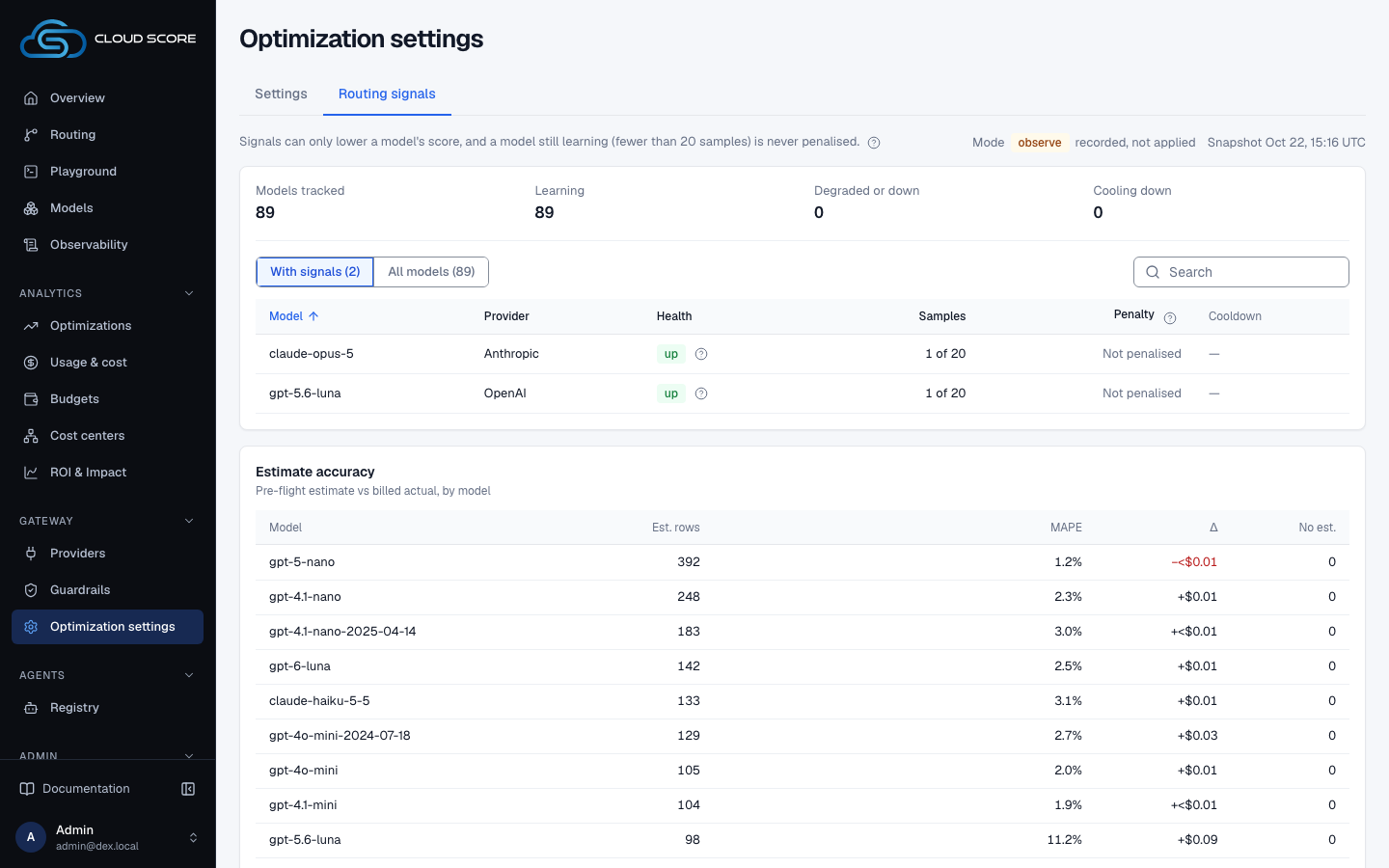
The Routing signals tab shows the measured evidence the router may shade a near-tie with. Its one-line intro states the rules: signals can only lower a model's score, and a model still learning is never penalised; its help adds that penalties are clamped in total, never bonuses. Beside it, Mode shows the mode badge, followed by recorded, not applied when the mode is observe, and Snapshot gives the time the signals were computed.
One card counts Models tracked, Learning, Degraded or down and Cooling down, then holds the table. The table opens on With signals (n): models with samples, a provider in trouble, an open breaker or a penalty. All models (n) lists every model, and the search box filters either view; when no model has a signal yet, the table offers Show all models. Columns are Model (hover for the model ID), Provider, Health, Samples, Penalty and Cooldown. A measured row shows its sample count and, under Penalty, the signed total with its health · reliability · latency parts beneath; a learning row shows 12 of 20 under Samples and Not penalised under Penalty. A cooling badge names the scope and the time the breaker lifts; its tooltip ends Other workers converge within 30 s. How penalties enter the score is explained in Models, tiers, and scoring.
Below the table, Estimate accuracycompares each model's pre-flight estimate with the billed actual over the last 30 days of production traffic: Est. rows, MAPE, Δ and No est. Served rows never carry an estimate.
| Health badge | Meaning (its tooltip) |
|---|---|
up | Last health check passed. No penalty. |
degraded | A failed check, or p95 above 3x the window median. Small penalty. |
down | Two consecutive failed checks. Penalised until one clean check. |
unknown | No checks yet, or the last check is stale (older than 3x the loop interval). Never penalised. |
Good to know
Badges tell you what a control really does.
Observe only: the setting is recorded and reported, but nothing acts on it yet; you can still set it to auto and save, and no request changes because of it. Not wired: no backend code reads the field; the control is disabled but keeps the value you configured. On a current backend the mechanism that wears Observe only is Context caching. What actually attaches the Anthropic cache breakpoint is the checkbox Legacy Anthropic prompt-cache hint (pre-engine baseline).
Two things ask for confirmation; everything else saves at once.
The dialog appears only for a promotion to auto against the saved value, or for the cache default going from off to exact or semantic. Downgrades, reference changes and advanced edits save immediately on Save optimization settings.
| Field | Allowed | Default |
|---|---|---|
Prompt Optimization | ON or OFF; request override supported | ON; no minimum token count |
Min confidence | 0.5 to 1 | Semantic 0.7 · Output budget 0.8 · Routing adjustments 0.7 |
Output budget · floor tokens | at least 64 | 256 |
Output budget · headroom | 1.0 to 4.0 | 1.5 |
Dedup · max wait (ms) | 100 to 120000 | 30000 |
Context cache · min prefix tokens | at least 256 | 2048 |
Semantic cache · lookup timeout (ms) | 100 to 3000 | 1500 |
Response cache · max entries per workspace (0 = unlimited, else ≥ 1000) | 0, or at least 1000 | — |
Response cache · max bytes per workspace (0 = unlimited) | 0 or more | — |
Legacy · affinity TTL fallback (s) | 30 to 86400 | 300 |
Legacy · shadow sample % | — | 20 |
Legacy · shadow similarity threshold | — | 0.90 |
The semantic floor can be raised by a policy, never lowered.
For Semantic response cache, the serve bar is the higher of the policy's similarity minimum (0.90 when unset) and this Min confidence. 0.5 is a hard floor. See Caching and deduplication.
Default modes on a fresh workspace.
Exact response cache and Semantic response cache start at auto; In-flight dedup, Output budget and Routing adjustments start at observe; Context caching starts at auto, gated by its policies. Prompt Optimization has its own ON/OFF control, defaults ON, and does not require a compression policy. The legacy prompt-cache hint is on.
Other pages point here.
Observability and the Playground show the cache reason Response cache switched off in Optimization settings when the default is off and no policy sets a mode.
Related
- Response cacheThe Response cache section on the Settings tab of Optimization settings: how many answers the response cache holds, whether semantic lookups can use the vector index and the embedder, which entries are earning hits, and how to purge by scope.
- ObservabilityThe per-request audit trail and the gateway's health: filter the request list, open a request for its route, attempts, cost and savings receipt, and read latency, outcomes and retries on Gateway health.
- Roll out an optimization safelyPromote one optimization mechanism from observe to auto without surprising your callers: read the would-apply counts, set a confidence floor, confirm the promotion, verify it per request in Observability, read the savings on Optimizations, and roll back in one save.
- Statuses and badgesEvery status word and badge Cloud Score shows, what each one means, and the page it appears on.
- OpenAI-compatible endpointPoint the official OpenAI SDK at the Cloud Score gateway: POST /v1/chat/completions routes when model is auto, pins when it is a model key, accepts dex_strategy, and answers with a dex_routing block, HTTP 403 on a block, 409 when no tool-capable model is available, and 502 on any other failure.
- OptimizationsRead what the optimization engine applied and what it saved against the reference model, on the Optimizations and Prompt Optimization pages in Analytics.