Integrations
Connect model providers with encrypted credentials, test them before and after saving, watch each connection's health, and see which providers can feed the semantic cache.
On this page
What you see
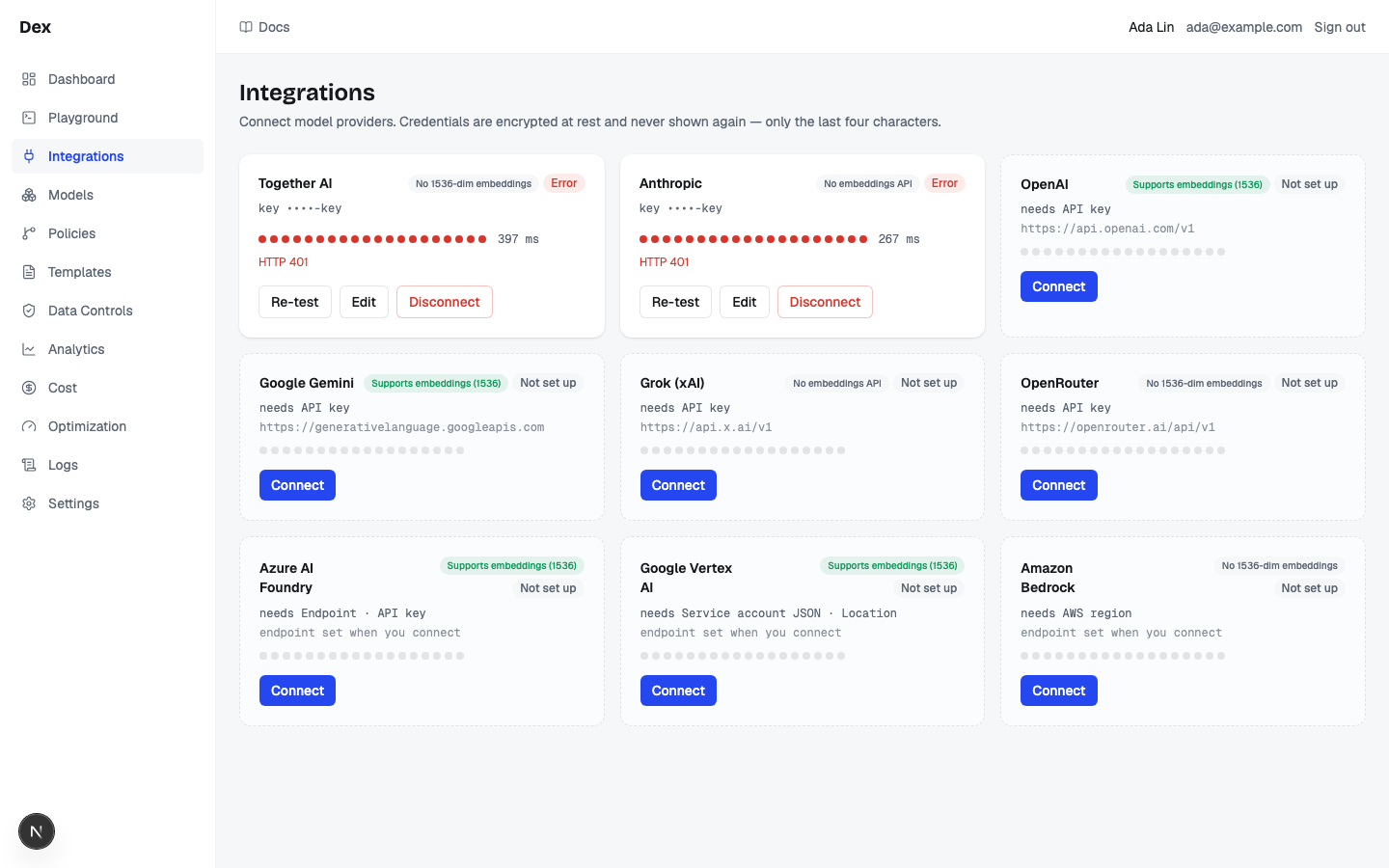
Integrations is listed in the sidebar as Gateway › Providers. One page, no tabs. Every provider Cloud Score can call has a card: a live card once you have connected it, an empty bay until then. The page has no loading copy; cards appear as soon as the lists load.
| Region | What it shows |
|---|---|
| Heading and subtitle | Integrations, then Connect model providers. Credentials are encrypted at rest and never shown again — only the last four characters. |
| Provider grid | One connected card per stored connection, then one empty bay per provider type that has no connection, in this order: OpenAI, Anthropic, Google Gemini, Grok (xAI), OpenRouter, Together AI, Azure AI Foundry, Google Vertex AI, Amazon Bedrock. Azure, Vertex, and Bedrock can have several cards (one per resource, project, or region). |
| Connected card: badges | An embeddings badge, Supports embeddings (1536), No embeddings API or No 1536-dim embeddings (hover it for the full reason), and a status badge, Connected, Error or Disconnected. |
| Connected card: mono lines | key •••• plus the last four characters of the secret, or no API key on file; the stored base URL (empty for Vertex and Bedrock); and, when you entered non-secret fields, a line such as AWS region us-east-1 · AWS access key ID AKIA… or Project ID my-proj · Location global. |
| Connected card: health strip | Up to 20 dots, oldest on the left, green for a passed check and red for a failed one, followed by the newest check's latency in ms or —. Hover a dot for its status, latency (or no latency), and time. The strip is absent until the first check. |
| Connected card: error lines | The provider's last failure message, for example invalid API key or HTTP 429; Re-test failed: …; Disconnect failed: …. Each appears only when there is something to say. |
| Connected card: buttons | Re-test, Edit, Disconnect. Azure, Vertex, and Bedrock cards add a text link such as Add another Azure AI Foundry. |
| Empty bay (dashed border) | The provider name, its embeddings badge, Not set up, a line naming the required fields such as needs API key, the default base URL or endpoint set when you connect, a row of dimmed dots, and Connect. |
| Provider | Empty bay says | Default base URL | Embeddings badge |
|---|---|---|---|
OpenAI | needs API key | https://api.openai.com/v1 | Supports embeddings (1536) |
Anthropic | needs API key | https://api.anthropic.com | No embeddings API |
Google Gemini | needs API key | https://generativelanguage.googleapis.com | Supports embeddings (1536) |
Grok (xAI) | needs API key | https://api.x.ai/v1 | No embeddings API |
OpenRouter | needs API key | https://openrouter.ai/api/v1 | No 1536-dim embeddings |
Together AI | needs API key | https://api.together.xyz/v1 | No 1536-dim embeddings |
Azure AI Foundry | needs Endpoint · API key | endpoint set when you connect | Supports embeddings (1536) |
Google Vertex AI | needs Service account JSON · Location | endpoint set when you connect | Supports embeddings (1536) |
Amazon Bedrock | needs AWS region | endpoint set when you connect | No 1536-dim embeddings |
| Part | What it shows |
|---|---|
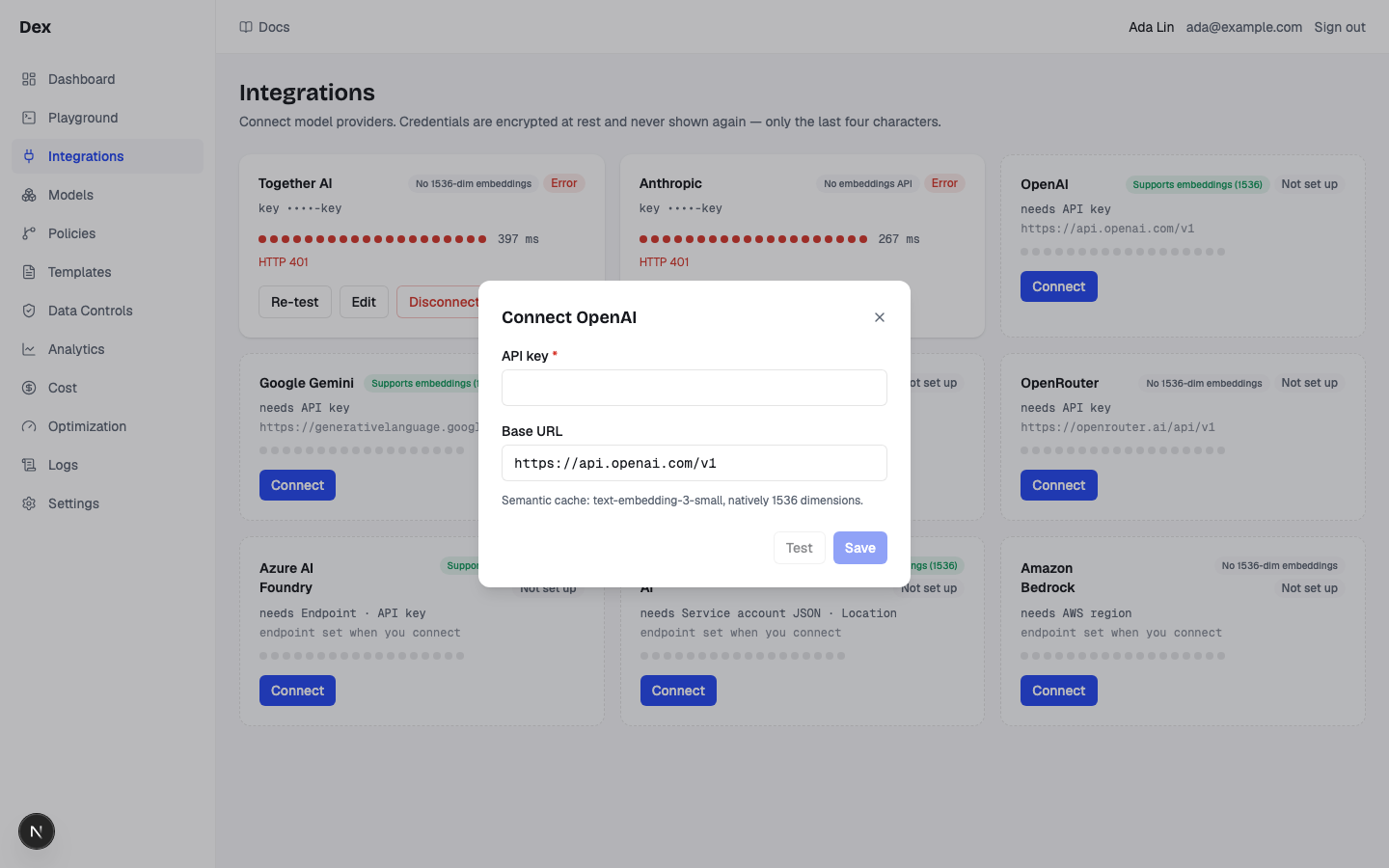
| Title | Connect OpenAI (the provider name changes). The Close icon, Escape, or a click outside closes it while idle; Cancel also closes it. Pending Test or Save keeps the dialog open. |
| Fields | One input per field for that provider (table below). A required field carries a red *. Secrets are masked. Base URL is prefilled with the type's default when it has one. |
| Semantic cache note | Semantic cache: followed by the provider's embeddings reason; grey when the provider supports embeddings, amber when it does not. |
| Result line | After Test or a failed Save: Credentials look good. or Failed: … with the provider's message. |
| Buttons | Cancel, Test and Save. Test and Save are disabled while required fields are blank; all fields are locked during a request. |
| Provider | Fields |
|---|---|
| OpenAI, Anthropic, Google Gemini, Grok (xAI), OpenRouter, Together AI | API key *; Base URL, prefilled with the default. |
Azure AI Foundry | Endpoint * (placeholder https://<resource>.openai.azure.com, help Your Azure AI Foundry resource endpoint.); API key *; API version (placeholder 2025-11-15-preview, help Optional. Leave blank unless your resource rejects requests without an explicit api-version.); Embeddings deployment (placeholder text-embedding-3-small, help Optional. Deployment name of a text-embedding-3-small model, used for semantic cache lookups. Blank uses 'text-embedding-3-small'.). |
Google Vertex AI | Service account JSON * (help Paste the full service-account key file. Needs the Vertex AI User role.); Project ID (help Defaults to the project in the service account.); Location * (placeholder global, help e.g. global, us-central1, europe-west4.). |
Amazon Bedrock | AWS region * (placeholder us-east-1); Bedrock API key (help Long-term Bedrock API key (starts ABSK). Leave blank to use an AWS access key pair instead.); AWS access key ID (placeholder AKIA...); AWS secret access key; AWS session token (help Only for temporary STS credentials.). |
| Part | What it shows |
|---|---|
| Title and intro | Edit Anthropic (the provider name changes), then Leave a credential blank to keep the stored value. |
| Fields | The same fields as Connect. Text fields and Base URL are prefilled with the stored values; secrets start blank with the placeholder leave blank to keep current value and are never required. |
| Error line | The provider's message when saving fails. |
| Buttons | Cancel and Save. There is no Test here. |
What you can do
| Action | What happens | What you see | Confirmation |
|---|---|---|---|
Connect | Opens the Connect dialog for that provider type. | Connect OpenAI (or the type you chose) with Base URL prefilled. | no confirmation |
Add another Azure AI Foundry | Opens the Connect dialog for a second connection of the same type (Azure, Vertex, and Bedrock only). | The same Connect dialog. | no confirmation |
Test | Checks the typed credentials against the provider without saving anything or changing any status. | Credentials look good. or Failed: …; the button reads Testing… meanwhile. | no confirmation |
Save (Connect) | Stores the credentials encrypted. No check runs. | The dialog closes and a card badged Not checked yet appears. On failure the dialog stays open with Failed: …; the button reads Saving… meanwhile. | no confirmation |
Re-test | Checks the stored credentials, records the outcome as the card's status, and adds a health dot with no latency. | Testing…, then Connected or Error with the provider's message; on a transport failure Re-test failed: …. | no confirmation |
Edit | Opens the Edit dialog for that connection. | Edit Anthropic (or the type you chose). | no confirmation |
Save (Edit) | Merges what you typed: a blank secret keeps the stored one, a blank text field clears it, a blank Base URL is left unchanged. The status is not re-checked. | The dialog closes; the card keeps its old badge until Re-test or the next health check. On failure the dialog shows the provider's message; the button reads Saving… meanwhile. | no confirmation |
Cancel (Edit) | Closes the dialog and discards what you typed. | The card is unchanged. | — |
Disconnect | Deletes the connection together with every model belonging to it and its health history. | Disconnecting…, then the card vanishes and the Not set up bay returns (unless another connection of that type remains). On failure Disconnect failed: …. | Confirm the named connection and current model count; Cancel makes no change |
| Hover a health dot | Nothing changes. | A tooltip with the status, the latency in ms or no latency, and the check time. | — |
| Hover an embeddings badge | Nothing changes. | A tooltip with the full reason the provider can or cannot feed the semantic cache. | — |
Step-by-step
Connect OpenAI, the shortest path to a routable provider.
Click
ProvidersunderGatewayin the sidebar.On the
OpenAIbay, clickConnect.The bay is badged
Not set upand readsneeds API key.Paste the key into
API key *.Leave
Base URLathttps://api.openai.com/v1unless you go through a proxy.Click
Testand wait forCredentials look good.Failed: invalid API keymeans the key was rejected: fix it and test again. Nothing is stored yet.Click
Save.The card reads
OpenAI,Supports embeddings (1536),Not checked yet, andkey ••••with the last four characters.Click
Re-test.The badge flips to
Connectedand a first dot appears whose tooltip saysno latency. Within a minute the health loop adds a dot with a measured latency. Then enable models for it, as in Your first request.
Connect two Azure AI Foundry resources.
On the
Azure AI Foundrybay, clickConnect.The bay reads
needs Endpoint · API keyandendpoint set when you connect.Fill
Endpoint *andAPI key *.For example
https://contoso-eastus.openai.azure.com.API versionandEmbeddings deploymentare optional.Read the note under the fields.
Semantic cache: text-embedding-3-small deployment (1536). Deployment name comes from the 'Embeddings deployment' field, default 'text-embedding-3-small'.Click
Test, wait forCredentials look good., then clickSave.On the new card, click
Add another Azure AI Foundryand repeat for the second resource.Both cards appear. Each has its own
Re-test,Edit, andDisconnect.Open
Modelsand add the deployment names by hand.Azure model discovery is refused, so you enter deployment names yourself; they are specific to your resource.
Rotate an Anthropic key.
On the
Anthropiccard, clickEdit.Edit Anthropicopens withLeave a credential blank to keep the stored value.Type the new key into
API key.Its placeholder reads
leave blank to keep current value. LeaveBase URLas it is.Click
Save.The card's
key ••••suffix changes. The status badge does not.Click
Re-testto confirmConnected.Editing never checks the new credential; only a test does.
Remove a provider.
Make sure you want to lose its models and history.
Disconnect first names the connection and its current model count; Cancel keeps both. Confirm Disconnect to proceed.
On the card, click
Disconnect.The button reads
Disconnecting…, the card vanishes, and theNot set upbay returns. Every model belonging to that connection and all of its health checks are deleted.
Examples
Anthropic-only chat, but you want the semantic cache
- What you do
Connect
Anthropic. The dialog note readsSemantic cache: Anthropic has no embeddings API. Semantic cache lookups need another connected provider that supports 1536-dimension embeddings.So you also connectGoogle Gemini.- What Cloud Score does
Routes chat to whichever models you enable, and embeds cache lookups with a connected provider that supports 1536-dimension embeddings, trying OpenAI, Azure, Google Gemini, then Google Vertex AI. Here that is Gemini, even if every chat request goes to Anthropic.
- What you see
The
Anthropiccard badgedNo embeddings APIand theGoogle Geminicard badgedSupports embeddings (1536), bothConnectedafter aRe-test.
Amazon Bedrock in two AWS regions
- What you do
Connect
Amazon BedrockwithAWS region *set toeu-central-1, anAWS access key IDandAWS secret access key, andBedrock API keyleft blank. Then clickAdd another Amazon Bedrockand repeat withus-east-1.- What Cloud Score does
Derives each connection's endpoint from its region and checks the credentials with a signed request that lists the region's foundation models.
- What you see
Two
Amazon Bedrockcards, each withkey ••••plus the last four characters of the access key ID, an empty base URL line, a config line such asAWS region eu-central-1 · AWS access key ID AKIA…, and the badgeNo 1536-dim embeddings: Bedrock cannot serve the semantic cache.
Reading the numbers
| Label | Meaning | Unit / format | Shows — when |
|---|---|---|---|
Connected / Error / Disconnected | The outcome of the last credential or health check. Not checked yet means saved but never checked; Disconnected is a recorded health result. | badge | Never; a fresh save shows Not checked yet until a check runs |
key •••• | The last four characters of the primary secret (the API key; for Bedrock the Bedrock API key, else the access key ID). | mono text | no API key on file when there is nothing to echo; always for Google Vertex AI, whose service-account JSON has no meaningful last four |
| Base URL line | Where Cloud Score sends this connection's requests. | URL | Empty for Google Vertex AI and Amazon Bedrock, whose endpoint is derived from Location or AWS region |
| Config line | The non-secret fields you entered, each prefixed with its form label and joined by a middle dot. | text | Line omitted when you entered no non-secret extra fields |
| Health dots | The last checks, manual Re-tests and the periodic loop alike, oldest on the left. | up to 20 dots | Strip omitted until the first check |
| Dot tooltip latency | Round-trip time of that check. | N ms | no latency for a manual Re-test, which measures none |
| Trailing latency | Latency of the newest check. | N ms | — when the newest check has no latency (a manual Re-test); never 0 |
| Last error line | The provider's last failure message for this connection. | text | Omitted when the last check passed |
| Embeddings badge | Whether this provider type can produce the 1536-dimension vectors the semantic cache compares. | badge | Never; always rendered, even on an empty bay |
needs … | The fields you must fill to connect this type. | labels joined by a middle dot | no credentials if a type required nothing; none does today |
Good to know
Connection identity and credential checks
Cards show the saved connection name and endpoint, region or project so multiple connections stay distinguishable. Vertex reports service-account credentials; Bedrock reveals only the last four characters of the access ID. Embeddings marked Registry fallback come from the registry rather than provider metadata. Editing any connection field clears the old Test result. Re-test and health-dot help are available by keyboard; timestamps are UTC.
Confirm the connection before disconnecting
Disconnect opens a confirmation naming the captured connection and its current model count. Cancel keeps everything. Confirming deletes the connection, its models and health history; requests may lose those candidates.
Test never touches the card; Edit never re-checks.
Test in the Connect dialog only checks what you typed, so a fresh save is always Not checked yet. Saving an edit keeps the old badge too. Click Re-test or wait for the next health check.
The health loop
While the backend health loop is running, Cloud Score checks every connection with credentials every 60 seconds, adds a dot with its latency, and updates the badge. The strip is capped at 20 dots, and the page caches the health history for 30 seconds and does not refetch it when you return to the window, so a new dot appears on the next refetch rather than the moment the check runs. History is kept for 30 days by default. If the loop is not running, status only changes when you click Re-test.
Required fields and blanks
Test and Save stay disabled until every field marked * has text. In Edit, secrets are never required but Endpoint, Location, and AWS region still are. On Edit, a blank text field clears the stored value; a blank secret keeps it; a blank Base URL is left unchanged and cannot be cleared from this form.
One connection, or several
Only Azure AI Foundry, Google Vertex AI, and Amazon Bedrock offer Add another …. Once OpenAI, Anthropic, Google Gemini, Grok (xAI), OpenRouter, or Together AI is connected, its bay disappears and there is no second connection.
Azure specifics
Cloud Score appends the path /openai/v1 to the endpoint unless you already pasted it. Model discovery is refused for Azure with Azure deployments must be added manually — deployment names are specific to your resource. Enter deployment names by hand on Models.
Vertex and Bedrock forms
Vertex requires Location in the form; Project IDfalls back to the service account's project. Bedrock requires only AWS region: supply either a Bedrock API key or an access key pair, because the form does not enforce that choice and the credential check fails without one.
What a credential check does
Test and Re-test make one cheap call to the provider (listing its models; for Vertex a token count on a probe model; for Bedrock a signed request listing foundation models) with a 10-second timeout, 5 seconds to connect. A slow or blocked network shows as a transport error inside Failed: …. Messages you may see include invalid API key, invalid or unauthorized credentials, and HTTP 429.
The embeddings badge is informational.
It never blocks saving. It says what a provider type can do, not which provider the cache is using; see Caching and deduplication for what the semantic cache needs.
If the grid stays empty
The page shows no loading text and no error text. If the provider lists fail to load, the grid simply stays empty; reload the page.
Related
- ModelsThe registry of every model Cloud Score may route to: discover a provider's catalogue, enable the models allowed to compete, and override prices and tiers.
- Optimization settingsSet the reference model, the workspace-default response cache, and each mechanism's mode and confidence floor, confirm promotions and check a decision before traffic feels it, and read the routing signals.
- API keysIssue the platform keys that authenticate every gateway request, and set what each key carries: a monthly budget, body storage, a security profile, sandbox rights, and cost attribution defaults.
- Statuses and badgesEvery status word and badge Cloud Score shows, what each one means, and the page it appears on.
- TroubleshootingThe messages Cloud Score puts in front of you, grouped by the page that shows them, with what caused each one and what to do next.
- How Cloud Score routes a requestThe fixed sixteen-stage pipeline every gateway request runs, what each stage decides, the three outcomes, how failover works, and which admin page configures which stage.